 Camera Sync Clock
How to sync the clocks of several cameras
Two cameras, or two photographers, almost never have their clocks set alike. When you put the photos in order, a few seconds off is enough to shuffle the ceremony. To find out how far ahead or behind each camera is:
- Open this page on your phone.
- Photograph the screen with each camera, one at a time. Use a fast shutter speed (1/250 or faster) so the milliseconds come out sharp.
- Compare the time shown in the photo with the time recorded in the file. The difference is how much that camera needs to be adjusted.
The best moment is before the shoot starts, with all the cameras together. If you forget, photograph the screen afterwards: what matters is the difference, and it barely changes during the day.
Works offline
Once opened, Camera Sync Clock keeps opening with no signal, at a venue or a church with no coverage. Offline it shows the phone's own time, which is usually right to within a few hundredths of a second. To get the icon on your home screen:
- iPhone: in Safari, tap Share › Add to Home Screen.
- Android: in Chrome, tap the menu › Install app (or Add to Home screen).
- Computer: in Chrome or Edge, click the install icon in the address bar.
After installing, open the app once with internet: that is when it saves itself to the phone. From then on it opens with no signal. While open, it keeps the screen on as you shoot.
Where the time comes from
With internet, Camera Sync Clock compares the phone's clock with a server synced to world atomic time (UTC), the same basis as every country's official time, and corrects the difference. The time zone comes from your device, and you can change it in the list above.
How to sync the clocks in FlashRAW
With a photo of this clock, FlashRAW fixes every photo from the same camera at once:
- Open the job's folder, with the photos from all the cameras.
- Click the photo of this clock taken with one of the cameras and press ⌘⇧C (Ctrl⇧C on Windows) to select every photo from that camera.
- Press ⌘⇧T (Ctrl⇧T) to adjust the capture time. Zoom into the photo of the clock and type the time shown on the screen. FlashRAW works out the difference and applies it to all the selected photos.
- Repeat for each camera. With all of them synced, the photos fall into order on one timeline.
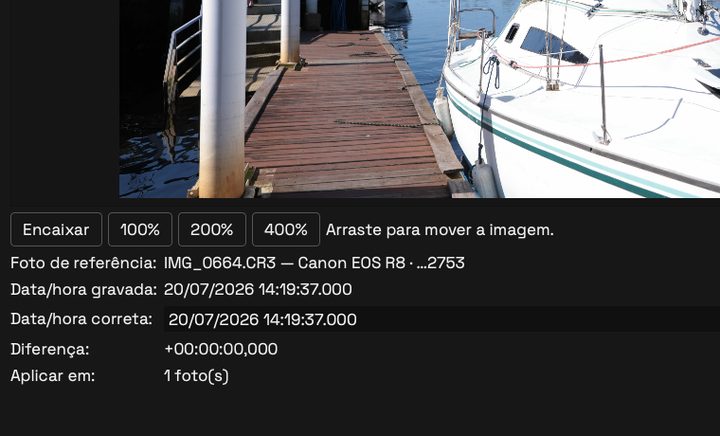
The fix goes into the XMP file next to each RAW. The RAW is never changed.
FlashRAW opens every RAW in a folder at once, with no import, and lets you mark stars and colors from the keyboard. Try it free for 14 days.
↑ Back to the clock